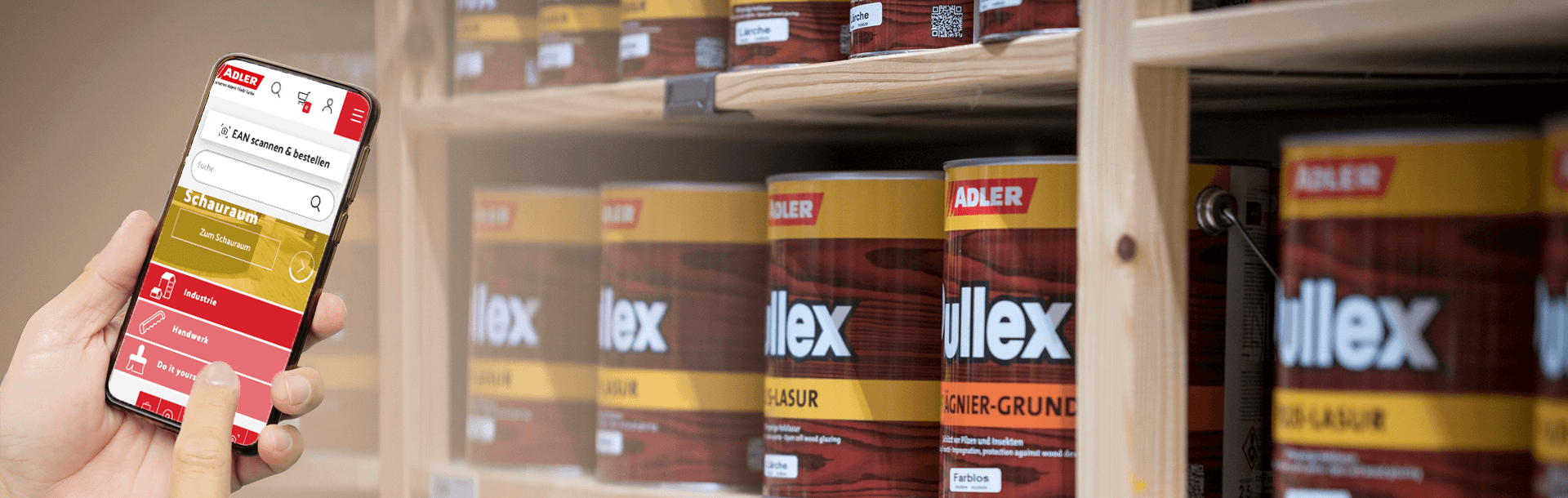
Do you already know which ADLER product you need? Do you want to order it with just a few clicks? With ADLER's scanner app, this is now possible. All you need to do is scanning the item with your mobile device and it will be displayed on your device. The web-based app works on all operating systems and devices and does not need to be installed separately.
Learn how to use the scanner app in this step by step guide:
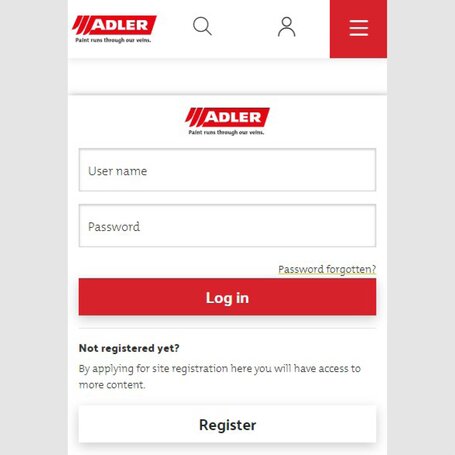
STEP 1: REGISTRATION
In order to be able to use the scanner app you need to log in with your account information.
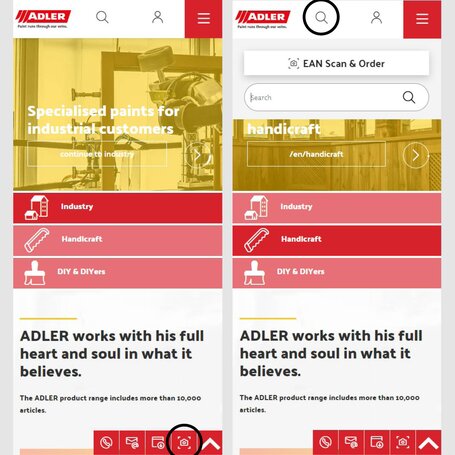
STEP 2: OPEN THE SCANNER FUNCTION
There are 2 ways to access the scanner function:
- Click on the camera icon in the red footer menu. (Figure 1)
- Or by clicking on the search (the magnifying glass icon) in the white header menu. Above the search bar you will then find a button called "Scan & Order EAN", which will take you to the scanner app. (Figure 2)
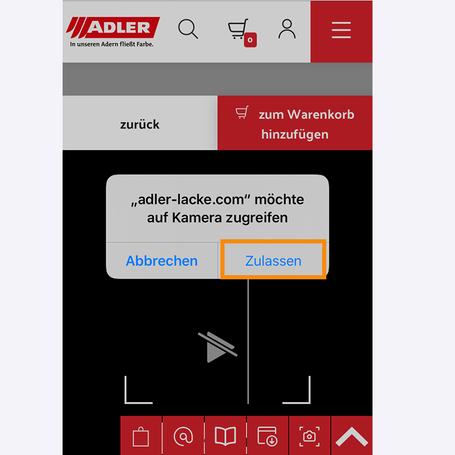
STEP 3: CAMERA ACCESS
To scan the EAN code you need to use the camera of your device. For this, you will have to allow the application to access the camera.
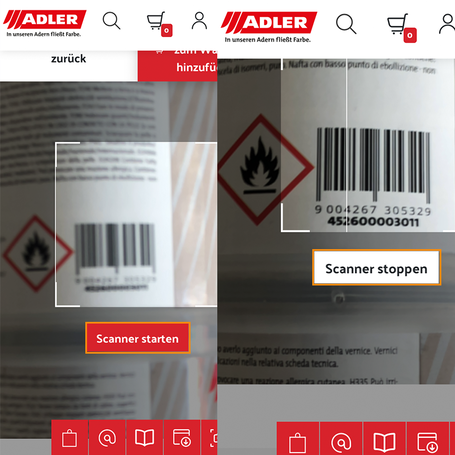
STEP 4: SCAN ARTICLE
Now, the most important thing is to position the can correctly. The entire EAN code (the barcode) should be visible within the camera frame. You can then start the scanner (press the red button) and, if necessary, readjust the can or focus better. The scanner will verify the area in the camera frame and scan the code. (You can stop the scanning process by clicking the white button).
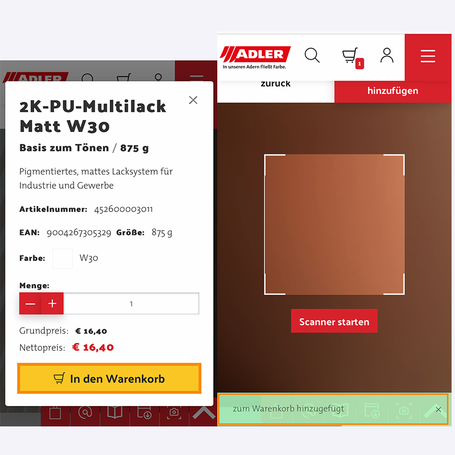
STEP 5: ADD ITEMS TO THE SHOPPING CART
If the code was captured correctly, the details of the product will be displayed on the screen. You can now add the item to the shopping cart by clicking on the yellow button.
If the item has been added to the cart, then a green message will appear.
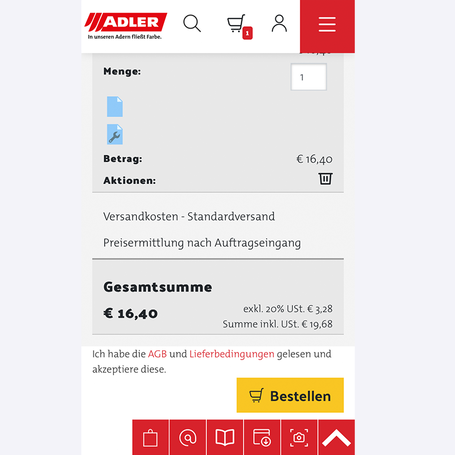
STEP 6: FINALIZE ORDER
You can now scan another product or complete the purchase in the shopping cart/check-out. Alternatively, you can add more products to the shopping cart manually.

© by adler-lacke.com